
 Melbourne, Victoria (Australia)

How to Set Up Google Analytics 4 and Track Website Traffic (Step-by-Step Guide)
 13 February 2026
How to Set Up Google Analytics 4 and Track Website Traffic (Step-by-Step Guide)
Understanding your website data is no longer optional — it’s essential. Whether you’re a business owner, marketer or SEO expert, knowing how to properly set up Google Analytics 4 (GA4) and track website traffic can directly impact your growth.
With over 28 million websites worldwide using Google Analytics, it remains the most trusted website tracking platform. In fact, GA4 was officially introduced as the future of analytics after Universal Analytics was sunset in 2023, shifting toward AI-driven data insights and event-based tracking.
This complete guide will show you how to:
- Set up Google Analytics 4 step-by-step
- Install GA4 on your website
- Track website traffic properly
- Use GA4 for SEO improvement
- Understand how AI works inside Google Analytics
Why Google Analytics 4 is Important for SEO
Google processes over 8.5 billion searches per day and understanding how users find and interact with your site helps you align your strategy with search engine algorithms.
For any search engine optimization expert, GA4 provides:
- Real-time traffic insights
- User behavior tracking
- Conversion monitoring
- Traffic source analysis
- AI-powered predictive metrics
Without proper tracking, SEO decisions are guesswork.
Step-by-Step: How to Set Up Google Analytics 4
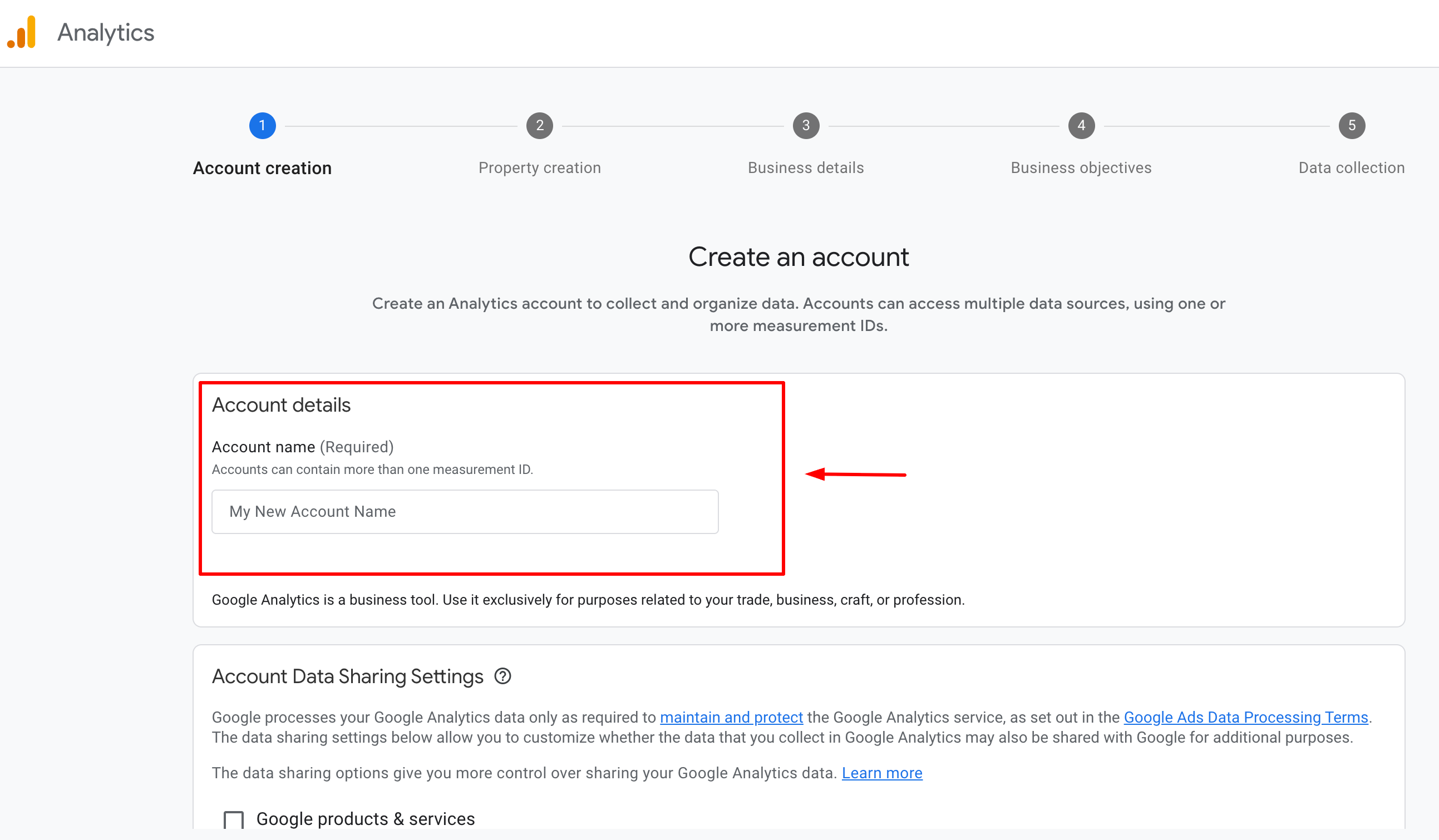
Step 1: Create a Google Analytics Account
- Go to analytics.google.com
- Click Start Measuring
- Enter your account name (Business/Website name)
- Select data-sharing settings
- Click Next
Step 2: Create a GA4 Property
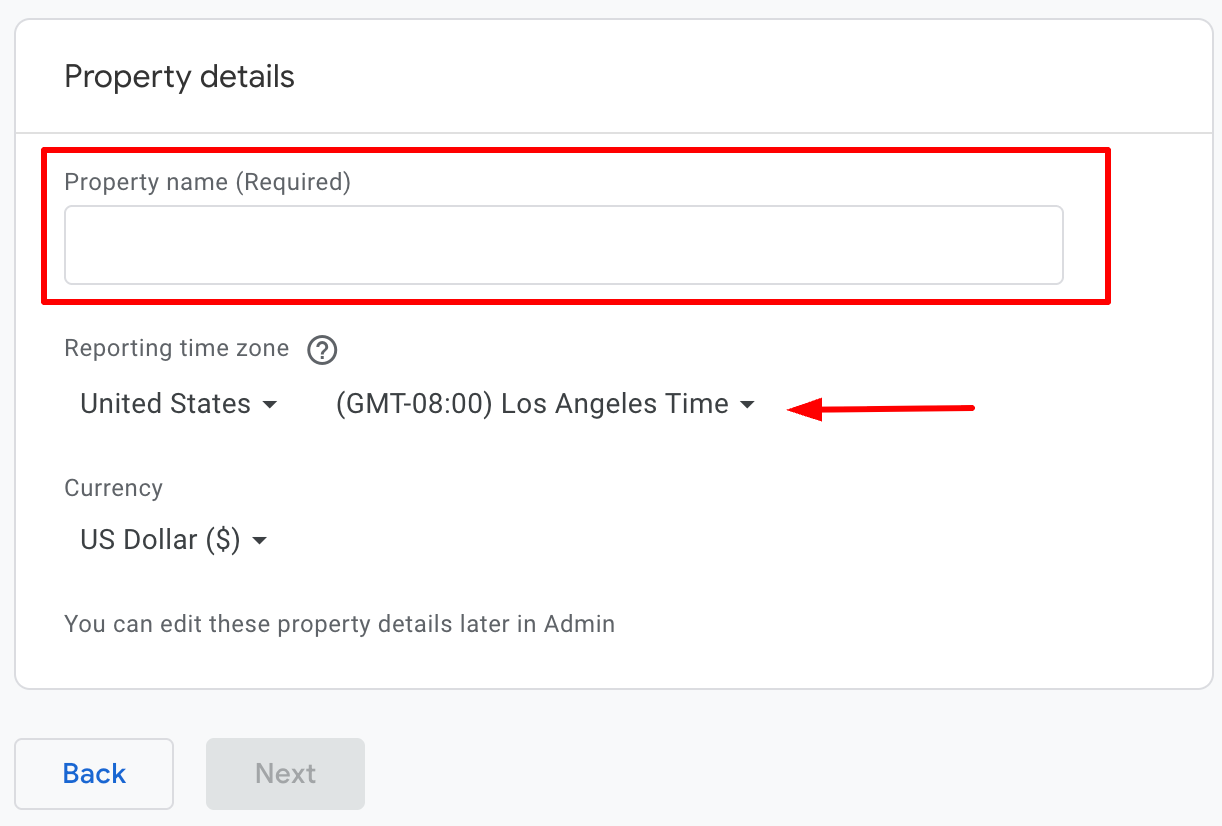
- Enter your website name
- Choose your reporting time zone
- Select your currency
- Click Next
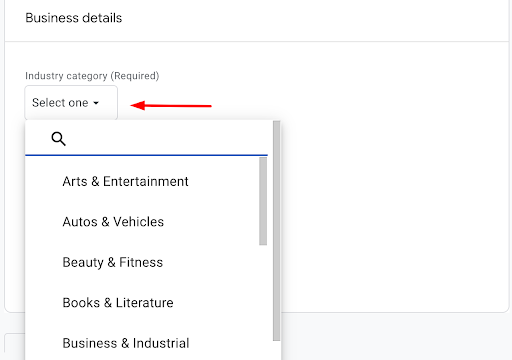
Under “Business Objectives,” choose goals like:
- Generate leads
- Drive online sales
- Increase brand awareness
Click Create.
Step 3: Set Up a Data Stream
- Choose Web
- Enter your website URL
- Add stream name
- Click Create Stream
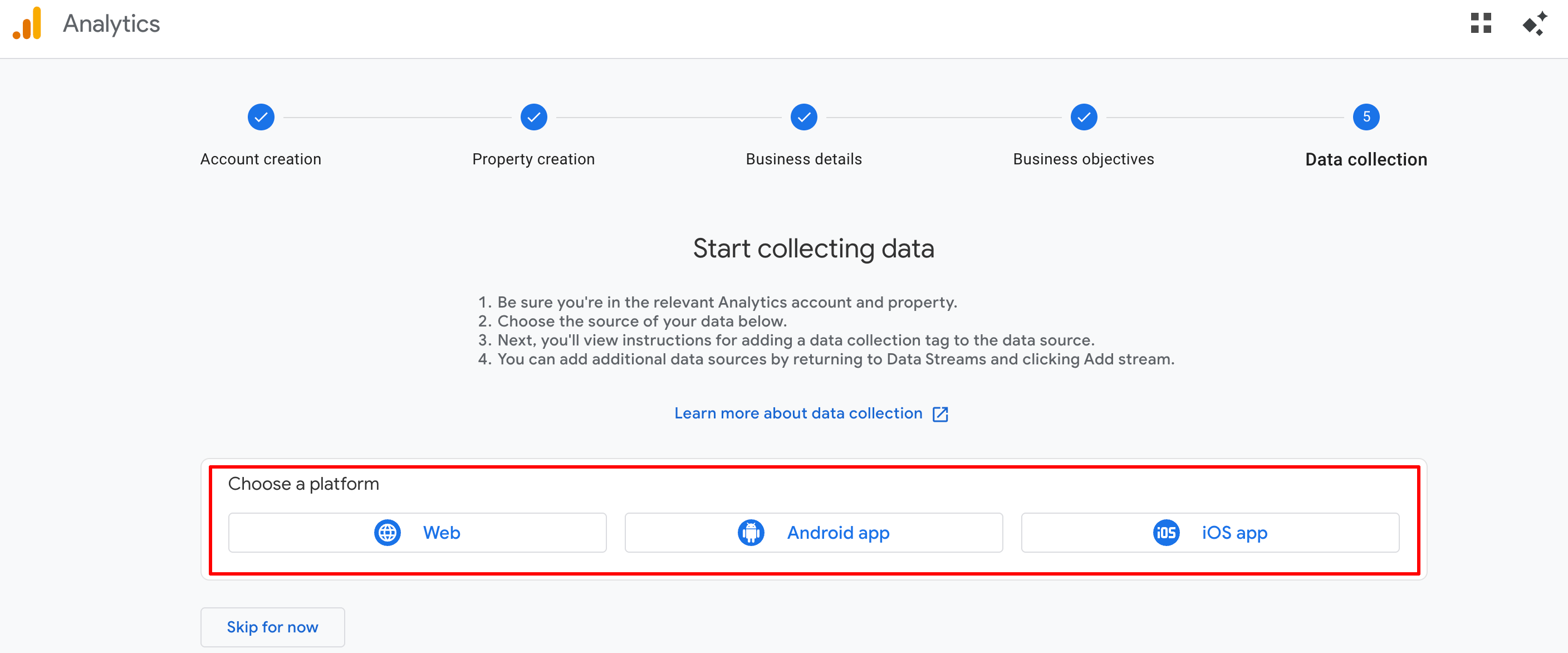
You will now receive a Measurement ID (G-XXXXXXXXXX).
Step 4: Install GA4 on Your Website
Option 1: Using Google Tag Manager (Recommended)
- Login to Google Tag Manager
- Create new tag
- Select Google Analytics: GA4 Configuration
- Enter your Measurement ID
- Set trigger to All Pages
- Publish
Option 2: Manual Installation
Paste the global site tag code inside the head tag section of your website.
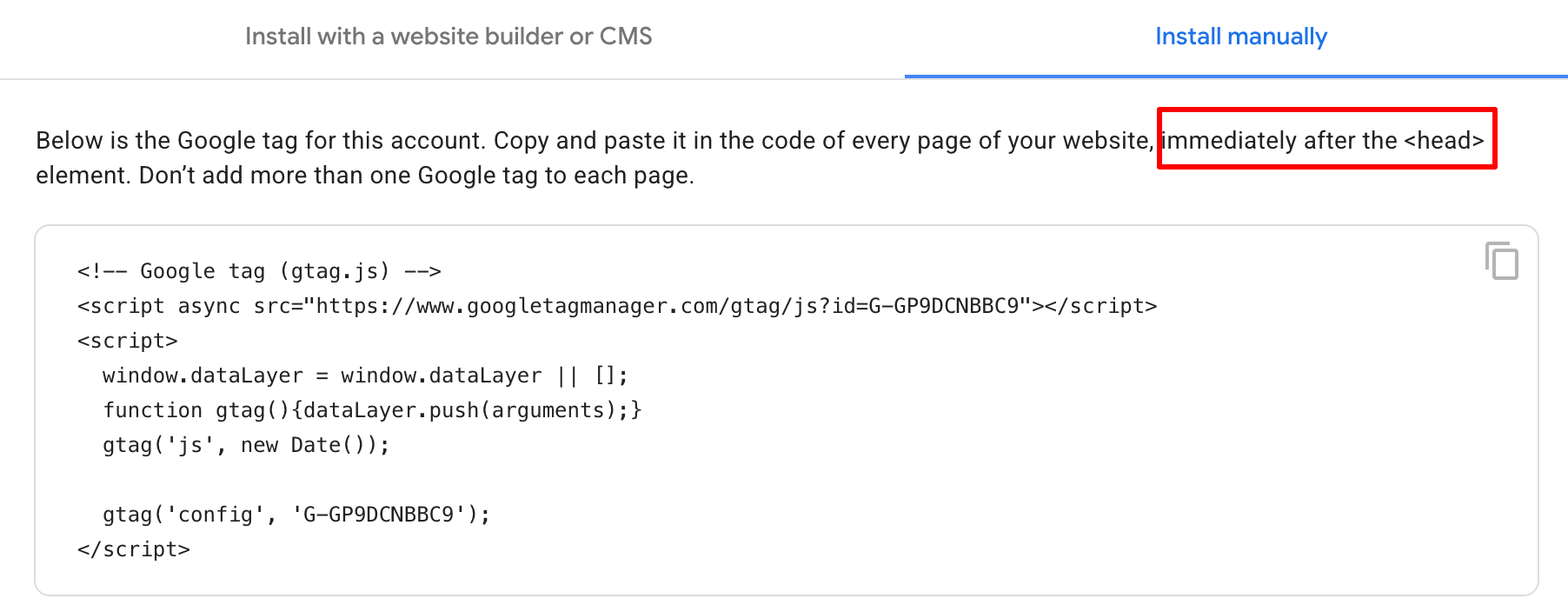
For WordPress users, you can also use plugins.
How to Track Website Traffic Using GA4
Once installed, here’s how to track traffic:
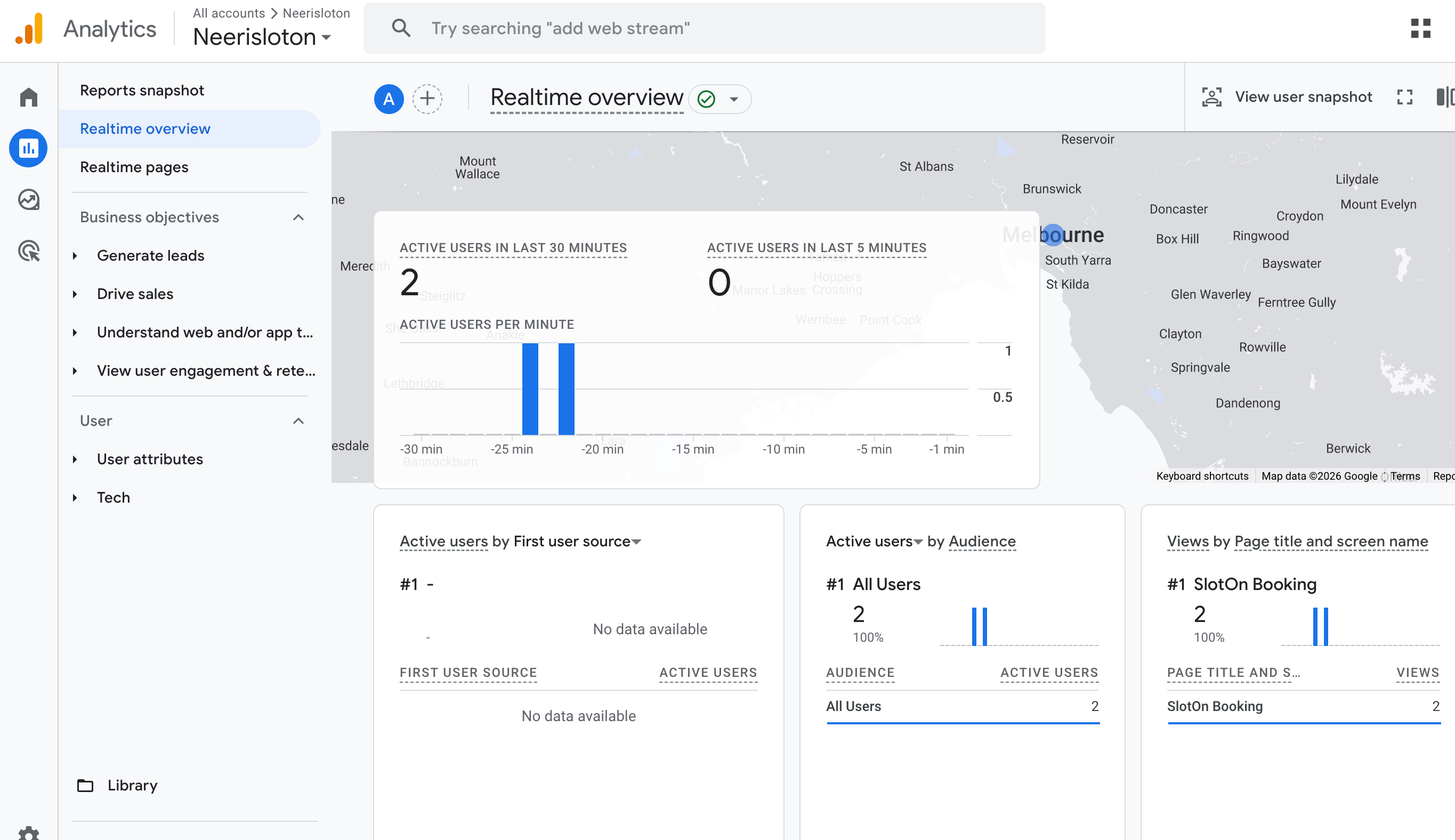
1. Real-Time Traffic
Go to:
Reports → Realtime
You can see:
- Active users
- Traffic source
- Page views
- Device type
- Geographic location
2. Traffic Acquisition Report
Go to:
Reports → Acquisition → Traffic Acquisition
Here you can track:
- Organic search traffic
- Direct traffic
- Referral traffic
- Social media traffic
- Paid campaigns
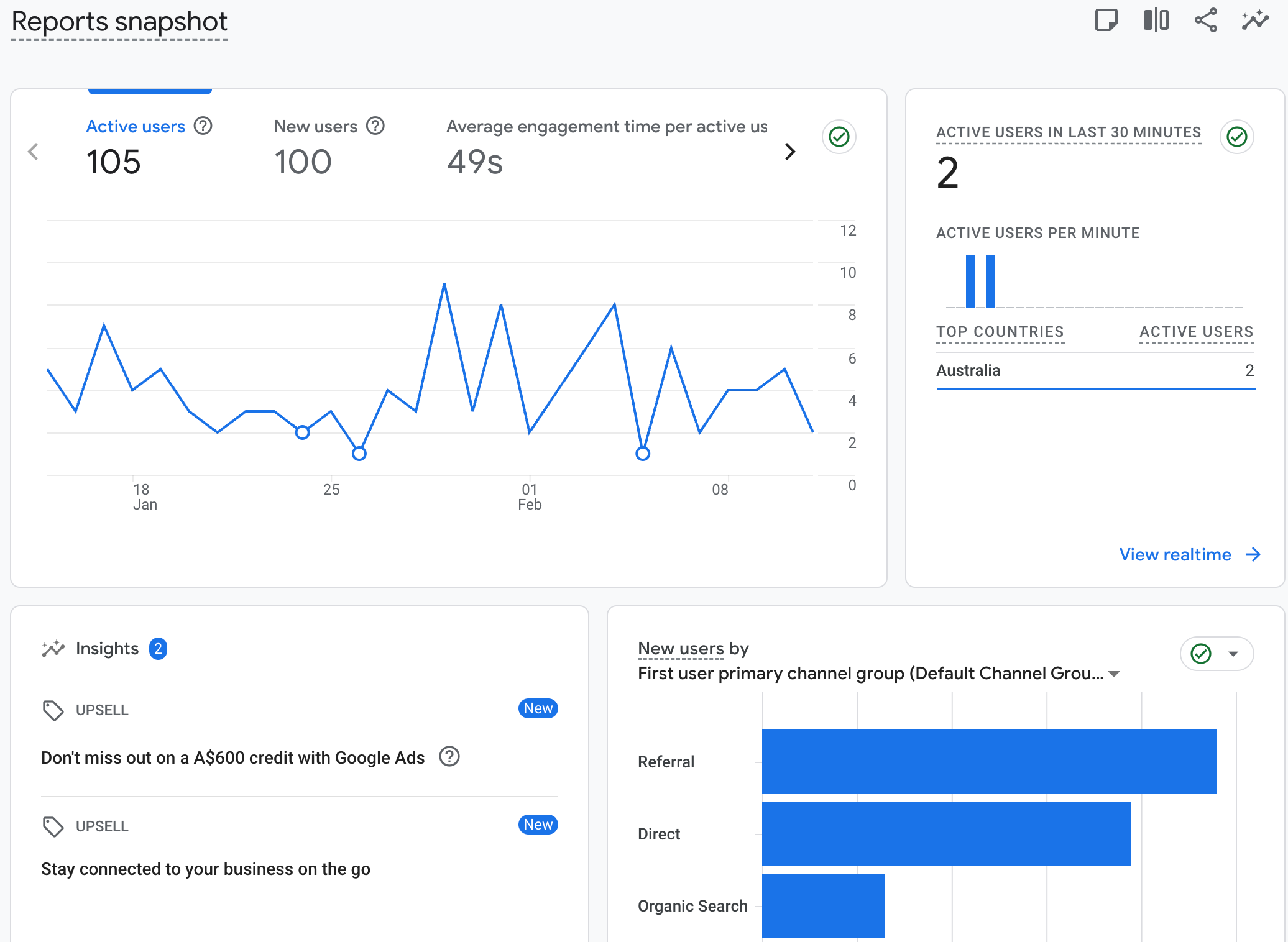
This report is extremely important for a google analytics consultant or SEO expert Melbourne to measure SEO performance.
3. Engagement Report
Go to:
Engagement → Pages and Screens
Here you can track:
- Page views
- Average engagement time
- Bounce rate
- Events per page
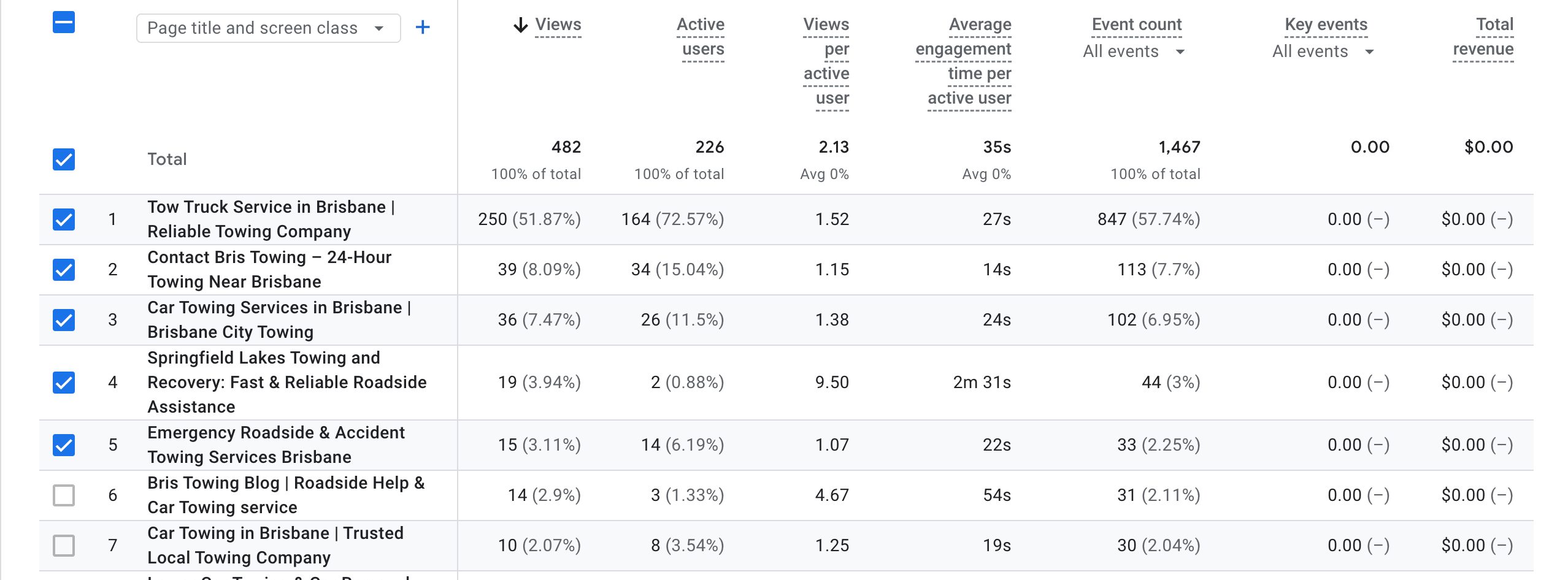
High engagement signals better user experience — which aligns with Google’s ranking algorithm.
4. Track Conversions in GA4
- Go to Events
- Mark important events as conversions
- Track form submissions, purchases, calls
Conversion tracking helps evaluate ROI from SEO efforts.
How GA4 Benefits SEO Experts
For a search engine optimization expert, GA4 helps:
1. Identify High-Performing Keywords
By connecting GA4 with Google Search Console, you can see which keywords drive traffic.
2. Improve Content Strategy
Analyze:
- Time on page
- Scroll tracking
- User paths
This helps optimize content based on real behavior.
3. Reduce Bounce Rate
Identify pages where users leave quickly and improve UX.
4. Measure Algorithm Impact
When Google updates its algorithm, traffic fluctuations can be tracked immediately.
A professional google analytics consultant ensures proper setup from day one.
How AI is Used in Google Analytics 4
GA4 is built with machine learning and AI integration.
AI Features in GA4:
Google uses AI to:
- Fill data gaps (‘privacy restrictions)
- Predict future revenue
- Detect traffic spikes or drops
- Suggest trends automatically
This makes GA4 more advanced than traditional analytics platforms.
Common Mistakes to Avoid
- Not setting up conversions
- Ignoring mobile traffic
- Not filtering internal traffic
- Not linking Google Search Console
- Failing to analyze engagement metric
Final Thoughts
Setting up Google Analytics 4 correctly is the foundation of successful digital marketing. From tracking website traffic to measuring conversions and leveraging AI-powered insights, GA4 empowers businesses to make smarter SEO decisions.
Whether you're a business owner or working with an SEO expert Melbourne, proper analytics setup ensures your search engine optimization strategy is backed by real data — not assumptions.
At Eirmon Solution, we specialize in GA4 setup, advanced tracking configuration and performance reporting to help businesses unlock real growth opportunities. If you need expert setup, reporting, or traffic analysis, our professional search engine optimization expert team is ready to help maximize your website’s performance with data-driven strategies.